
For the ultimate IPTV experience, especially with 4K content, the Amazon Fire TV Stick (including the Fire TV Stick 4K Max and Fire TV Cube) stands out as top-tier streaming hardware. Its powerful quad-core CPU, specialized video decoding hardware, and advanced Wi-Fi 6E support create the perfect environment for seamless 4K viewing. This comprehensive 2026 tutorial will walk you through the process of installing and optimizing IPTV Mate on your Firestick, ensuring you get the best performance.
What You Need First
- You'll need an Amazon Firestick or Fire TV set up with your TV and home internet (Wi-Fi or Ethernet).
- Your IPTV Mate subscription must be active, with login details sent to you via WhatsApp or Email.
- Setup requires approximately 5 minutes.
Step 1: Get the "Downloader" App
- On your Fire TV's main screen, head over to the Find section and choose Search.
- Type
Downloaderinto the search field. - Locate the Downloader app with the orange icon in the search results. Tap Download or Get, then let it install.
Step 2: Granting Permissions for Developer Options & Unknown Apps
To enable the installation of top-tier IPTV applications like IPTV Smarters Pro or TiviMate using Downloader, please follow these brief instructions:
- Proceed to Settings, which is the gear icon found on your Firestick's home screen.
- Go to My Fire TV and then select About.
- Special Notice for Fire OS 2026 Users: Tap your Fire TV Stick's name swiftly seven times to see a prompt stating: "You are already a developer, no action needed."
- Hit the back button to navigate to My Fire TV. The Developer Options menu should now be visible.
- Navigate to Developer Options, then choose Install unknown apps.
- Locate Downloader within the available options and activate it by switching to the ON setting.
Step 3: Load Your IPTV Player App
- Start the Downloader application from your collection of installed programs, making sure to approve the necessary storage access when asked.
- Paste one of these shortcodes into the URL input field:
- IPTV Smarters Pro: Enter code
78522and press Go. - TiviMate IPTV Player: Enter code
278077and press Go.
- IPTV Smarters Pro: Enter code
- The APK installer will download automatically. Once it's finished, click Install.
- After the installation process is complete, select Open to begin using your fresh IPTV player.
Step 4: Access Your IPTV Mate Account
- When IPTV Smarters or TiviMate first launches, choose the option for Login with Xtream Codes API, which might also be labelled as Add Playlist.
- Input the following information, which you'll find in your purchase confirmation:
- Any Name:
IPTV Mate 4K - Username: [Your custom username from WhatsApp]
- Password: [Your custom password from WhatsApp]
- Server URL: [Your exclusive cluster web address provided via WhatsApp]
- Any Name:
- Tap Add User or Login. Within a minute, the application will load all channel groupings, live sports timetables, and our extensive library of over 142,000 VOD titles.
Top Tips for Smooth Firestick Streaming
- Activate Hardware Decoding: Navigate to your IPTV player's configuration and set the Video Decoder to Hardware (HW+) for optimal performance using the Firestick's graphics processing unit.
- Buffer Size Adjustment: For robust performance, especially with unstable Wi-Fi, opt for a Medium or Large buffer setting (3-5 seconds).
- Perform Weekly Cache Cleaning: Navigate to Settings > Applications > Manage Installed Applications > Clear Cache. Doing this regularly keeps your Firestick running at its best performance.
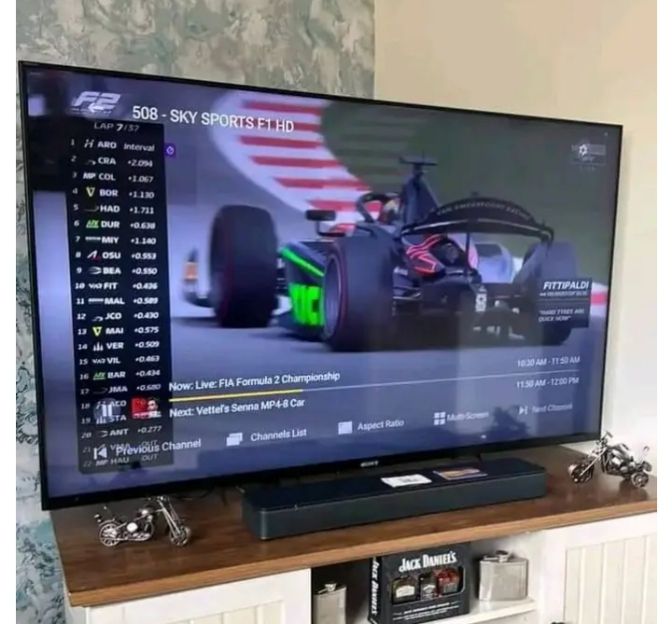
Enhance Your 4K Streaming Today
Become one of the more than 15,000 happy viewers throughout Europe who rely on IPTV Mate.
Start Watching Instantly →